// overview
This project documents the full Google Drive setup and management workflow built for a simulated small business client — Sarah's Bakery — covering everything a VA handles on day one and ongoing: building a clean folder structure from scratch, setting granular permissions for each team member, recovering accidentally deleted content, organizing files for fast retrieval, and maintaining a template system for recurring documents.
Every decision was made with a real business context in mind — protecting sensitive financial data from the wider team, enabling the social media manager to work without overstepping, and building a structure scalable enough to still make sense 12 months and dozens of files later.
// live screenshot
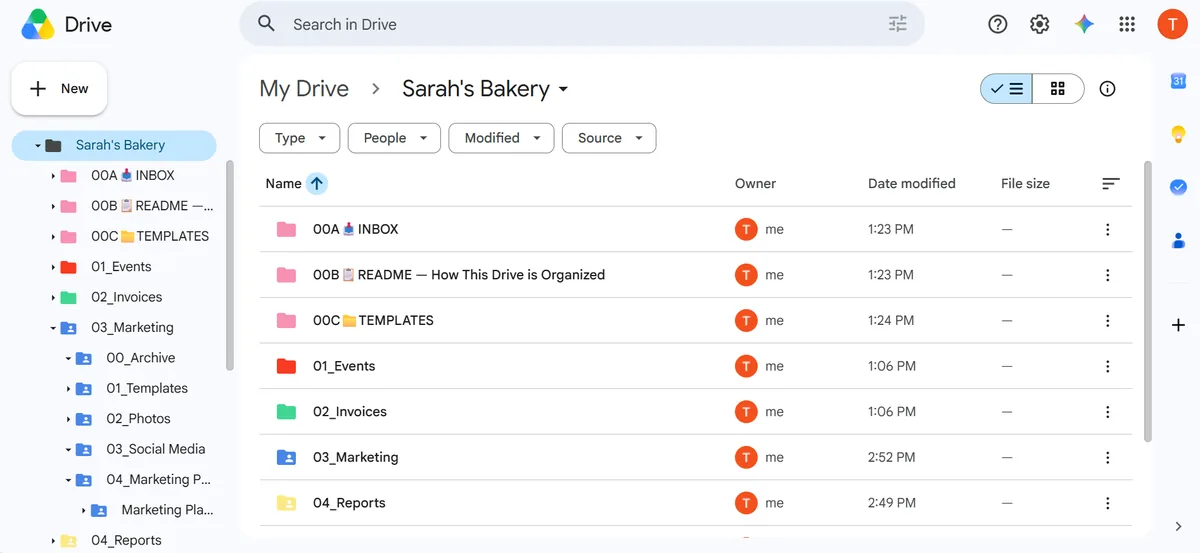
The actual Google Drive folder structure built for Sarah's Bakery — showing the numbered folder system, color coding, and utility folders in a real working Drive.
// Sarah's Bakery Drive — numbered folders · color-coded categories · utility system
// folder architecture
The Drive was built with a two-layer system: utility folders at the top (prefixed 00A–00C) for meta-management, and numbered content folders (01–05) for client work. Color coding and emojis make the structure scannable at a glance without opening anything.
Numbers control sort order. Emojis signal folder type. Utility folders use 00A/B/C prefix to float above content folders. Subfolders inherit parent color for instant visual grouping.
// exercises completed
| # | Exercise | Skill | Result |
|---|---|---|---|
| 1 | Built complete folder structure for Sarah's Bakery from scratch | Google Drive | ✓ Passed |
| 2 | Shared 04_Reports (Viewer) and 03_Marketing (Editor) with restricted resharing | Drive Permissions | ✓ Passed |
| 3 | Recovered accidentally deleted content using Version History and named version checkpoints | Version History | ✓ Passed |
| 4 | Located all spreadsheet files using file-type filter; starred Marketing Plan for quick access | Drive Search | ✓ Passed |
| 5 | Created template system and produced July copy from master template without touching original | Template Workflow | ✓ Passed |
// permission management
Every team member gets the minimum access they need — no more. Resharing is disabled for all external collaborators so only the VA and client owner can control who gets in.
| Role | Folder | Permission | Can Edit | Can Reshare |
|---|---|---|---|---|
| Accountant | 04_Reports | Viewer | ✗ | ✗ |
| Social Media Manager | 03_Marketing | Editor | ✓ | ✗ |
| Business Partner | Case by case | Editor | ✓ | ✗ |
| Client (Owner) | Everything | Owner | ✓ | ✓ |
Always uncheck "Allow editors to change permissions and share." Use "Limit access" on sensitive folders (Invoices, Contracts, HR) so parent-folder access doesn't cascade down.
// skills demonstrated
Organization
- Numbered folder ordering
- Color coding by category
- Emoji utility folders
- Archive system
- INBOX workflow
- README documentation
Access Control
- Viewer vs Editor roles
- Restricted resharing
- Folder-level privacy lock
- General access control
- Permission auditing
File Management
- Version history recovery
- Named version checkpoints
- Template + copy workflow
- File type search filters
- Starred quick access
- Naming conventions
// key strategies
Folder Design Rules
- Numbers force sort order
- Utility folders float with 00A/B/C
- Subfolders match parent color
- Archive inside every folder
- Templates folder per category
- Year subfolders for scalability
VA Daily Habits
- All unsorted files → INBOX first
- Never edit original templates
- Name versions before big edits
- Share at folder level, not file
- Always set General Access = Restricted
- Use filter search, not keyword search
// impact
A disorganized client Drive is one of the most common pain points VAs are hired to fix. Files named "Final_FINAL_v2," folders with no structure, and shared links set to "Anyone with the link" are security and productivity risks most clients don't even know they have.
This system gives Sarah's Bakery a Drive that any team member can navigate without asking questions, any sensitive folder locked down from the wrong eyes, and any accidentally deleted content recoverable in under a minute. The numbered + color-coded structure scales to hundreds of files without ever needing a reorganization — new months go into the year subfolder, old files go to Archive, and the root always looks exactly the same.
The same pattern — structure → access → recover → search → template — applies to any client Drive regardless of industry. It's a reusable system, not a one-time setup.