// overview
Overview
This project demonstrates a complete Google Calendar management system built around a real two-client VA scenario. Using Google Calendar's native tools — separate calendars, color coding, recurring events, shared access, meeting links, and task integration — a fully organized scheduling workspace was built that can scale to any number of clients without confusion.
The system was designed so each client's schedule stays visually distinct, recurring workflows run automatically, and the VA can toggle between clients in seconds — no mixing, no missed meetings, no lost deadlines.
Live System Screenshots
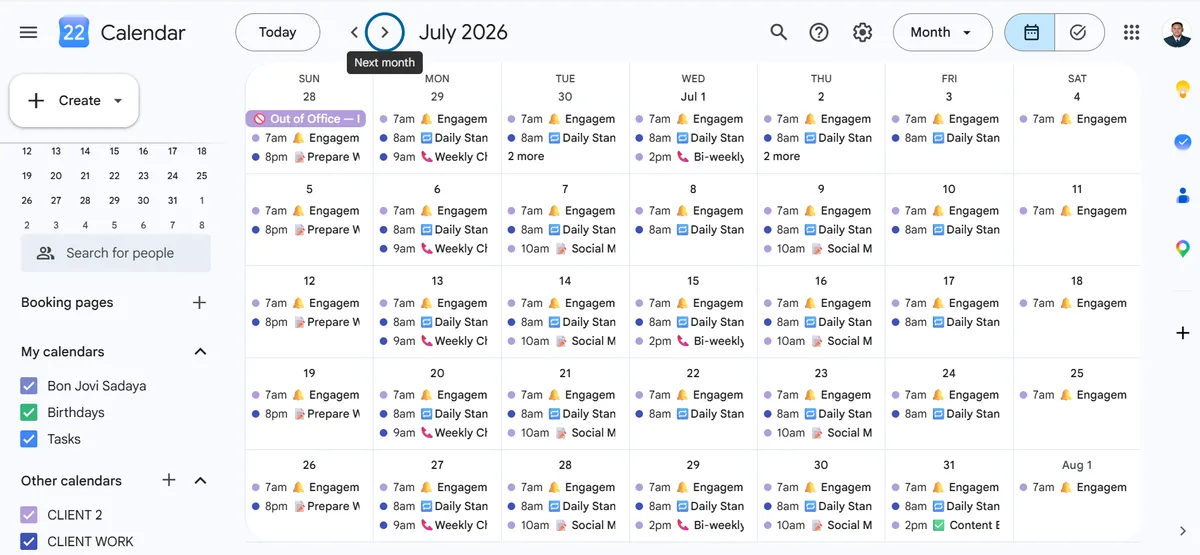
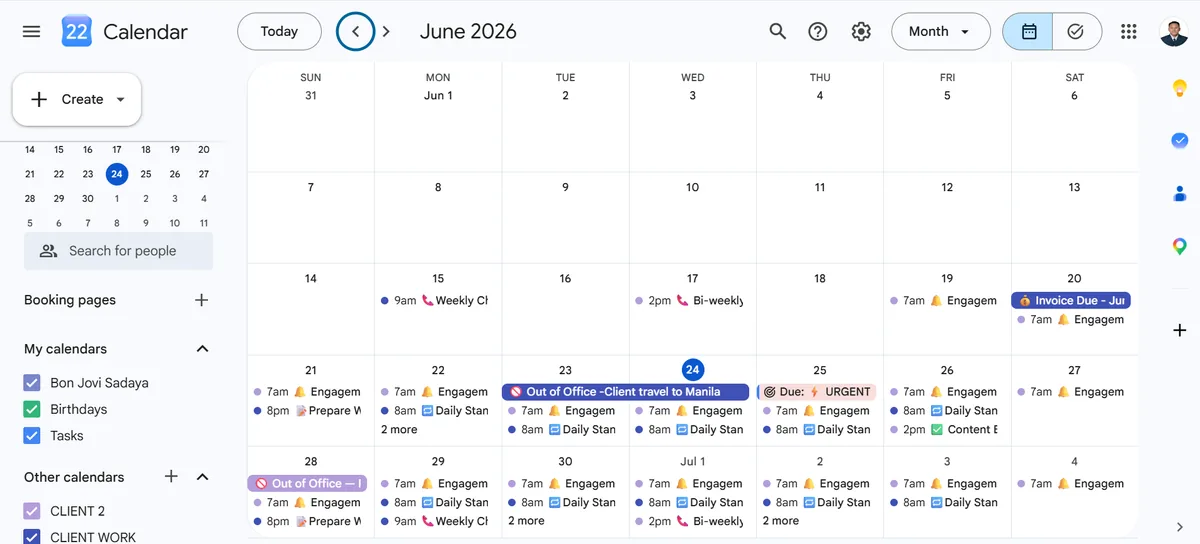
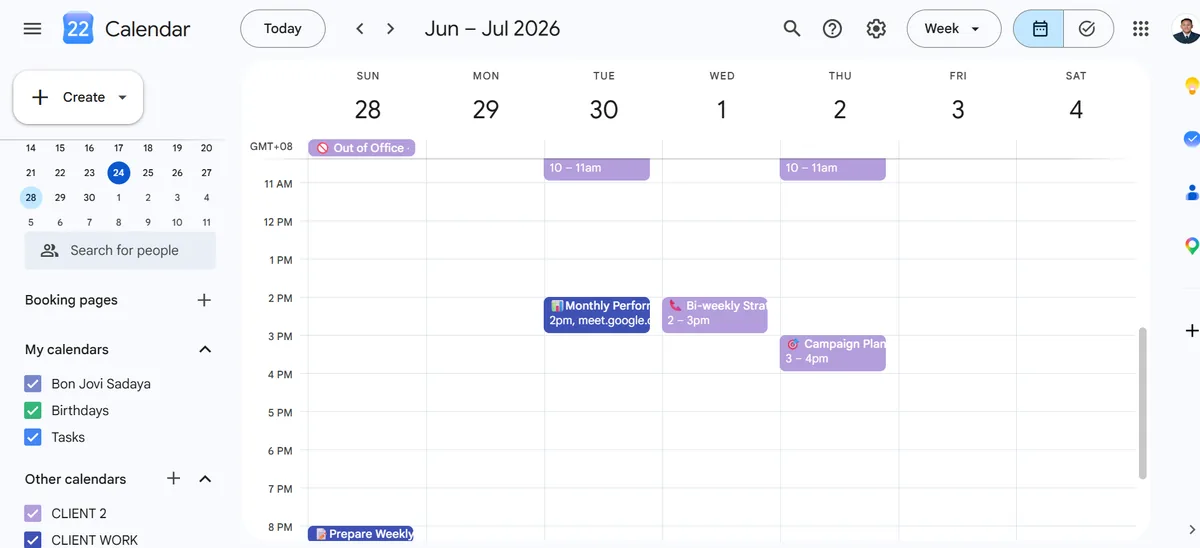
Actual screenshots of the Google Calendar management system in action — showing the multi-client color-coded setup, recurring event patterns, Out of Office blocking, and week-view time blocking across both clients.
// july 2026 — month view · recurring events · CLIENT WORK + CLIENT 2 calendars active
// june 2026 — month view · out of office blocking · invoice deadlines · urgent flags
// week view — time-blocked meetings · bi-weekly strategy · campaign planning · google meet links
Calendar Architecture
Each client gets their own dedicated calendar — color coded for instant identification. Individual events are further distinguished using emoji prefixes in the title so urgency and event type are visible at a glance, without overriding the client color.
- 🔵 CLIENT WORK — E-commerce business owner · Blue calendar
- 🟣 CLIENT 2 — Social media manager · Purple calendar
When managing one client, the other calendar is unchecked in the sidebar — full focus, zero clutter. When a full overview is needed, both are checked and the color difference makes every event instantly identifiable.
As the client list grows, a new calendar is added per client. The structure scales without rebuilding anything.
Event Type System
Emoji prefixes in event titles add a second layer of meaning on top of calendar color — so the type and urgency of any event is readable without opening it.
- 📞 — Call or video meeting
- ⚡ URGENT — Needs immediate attention
- 💰 — Invoice or payment deadline
- 🚫 Out of Office — Client unavailable, block time
- 📝 — Preparation task or agenda build
- 📊 — Report or review due
- ✅ — Completed milestone or review
- 🔔 — Daily check or engagement monitor
- 🎯 — Strategy or campaign planning
Recurring Schedule Setup
Recurring events are the backbone of calendar management. Once set, they run automatically — no manual entry every week, no missed meetings. The system uses three recurrence patterns across both clients.
- Daily — 🔔 Engagement Check every morning at 7:00 AM
- Weekdays only — 🔁 Daily Standup Monday–Friday 8:00–8:15 AM
- Weekly — 📞 Weekly Check-in every Monday 9:00–9:30 AM
- Weekly — 📊 Send Weekly Report every Friday 4:00 PM
- Weekly — 📝 Prepare Weekly Agenda every Sunday 8:00 PM
- Bi-weekly — 📞 Strategy Meeting every other Wednesday 2:00–3:00 PM
- Bi-weekly — 📝 Social Media Scheduling every Tuesday & Thursday 10:00–11:00 AM
- Monthly — ✅ Content Batch Review last Friday of every month 2:00–3:00 PM
Shared Calendar Access
The VA manages the client's calendar through Google Calendar's sharing feature — no password required. The client shares their calendar with the VA's Google account and sets the permission level.
- Client goes to Settings → Share with specific people
- Adds the VA's email with "Make changes to events" permission
- VA sees the client's calendar instantly under Other Calendars
- VA can create, edit, and delete events on the client's behalf
- Client stays the owner — access can be revoked instantly at any time
This is the same principle as Gmail delegation — the client stays in full control, the VA does the work, and no passwords are ever shared.
Meeting Link Integration
Every meeting event includes a video conferencing link directly in the event description so attendees can join with one click — no separate email needed, no hunting for links before calls.
- Google Meet — generated at meet.google.com and embedded in event description
- Zoom — client's Zoom meeting link pasted directly into event description
- Meeting agenda — added below the link so attendees arrive prepared
Example event description format:
📹 Meeting Link:
meet.google.com/xxx-xxxx-xxx

📋 Agenda:
1. Review last week's tasks
2. Discuss priorities
3. Set goals for next week
Out of Office Blocking
When a client is unavailable — travel, holiday, or personal time — the VA creates a full-day block event spanning the unavailable dates. This prevents meetings from being scheduled during that period and gives the VA immediate visibility when planning around the client's schedule.
- 🚫 Out of Office — Client Travel to Manila · June 23–24 · All day
- 🚫 Out of Office — Public Holiday · June 28 · All day
All-day blocks appear at the top of the calendar view — immediately visible without scrolling through time slots.
VA Task Integration
Google Tasks are personal — they can't be placed on a client's calendar. The correct workflow separates what lives in the client's space from what lives in the VA's space.
- Client's calendar — events only: meetings, deadlines, recurring schedules
- VA's Tasks — personal reminders to take action on behalf of the client
Example: a Weekly Check-in Call lives on the client's calendar as an event. A reminder to Send Follow Up Email after the call lives in the VA's own task list — invisible to the client, visible to the VA.
Daily Calendar Management Flow
The system follows a consistent daily workflow so no meeting is missed, no deadline is forgotten, and both clients always have an up-to-date schedule.
- Open Google Calendar → check both client calendars for today's events
- Confirm all meeting links are in place for calls happening today
- Check for any upcoming deadlines or urgent flags in the next 48 hours
- Add or update any events requested by clients via email or message
- Set reminders on time-sensitive events if not already set
- Block Out of Office dates as soon as client travel or holidays are confirmed
- End of day — both calendars are clean, current, and accurate
Tools Used
- Google Calendar — primary scheduling and calendar management
- Separate Calendars per Client — color-coded isolation
- Shared Calendar Access — delegated management without password sharing
- Recurring Events — daily, weekday, weekly, bi-weekly, monthly patterns
- All-Day Events — deadlines, holidays, Out of Office blocking
- Event Descriptions — meeting links and agenda embedded per event
- Google Meet — video conferencing link generation
- Zoom — client meeting link integration via description
- Google Tasks — VA personal task reminders alongside client calendar
- Emoji Prefix System — visual event type identification
- Calendar Toggle — single-client focus via sidebar show/hide